

We’ve all been there. You’re doing some “Spring Cleaning” on your hosting server—deleting old session files, traffic reports, and backups—and suddenly, you refresh your page only to see the dreaded “404 Not Found” or a white screen of death.
If you’ve accidentally deleted a bit too much and can no longer access your WordPress dashboard, don’t panic. Here is the exact checklist we used to get things back on track.
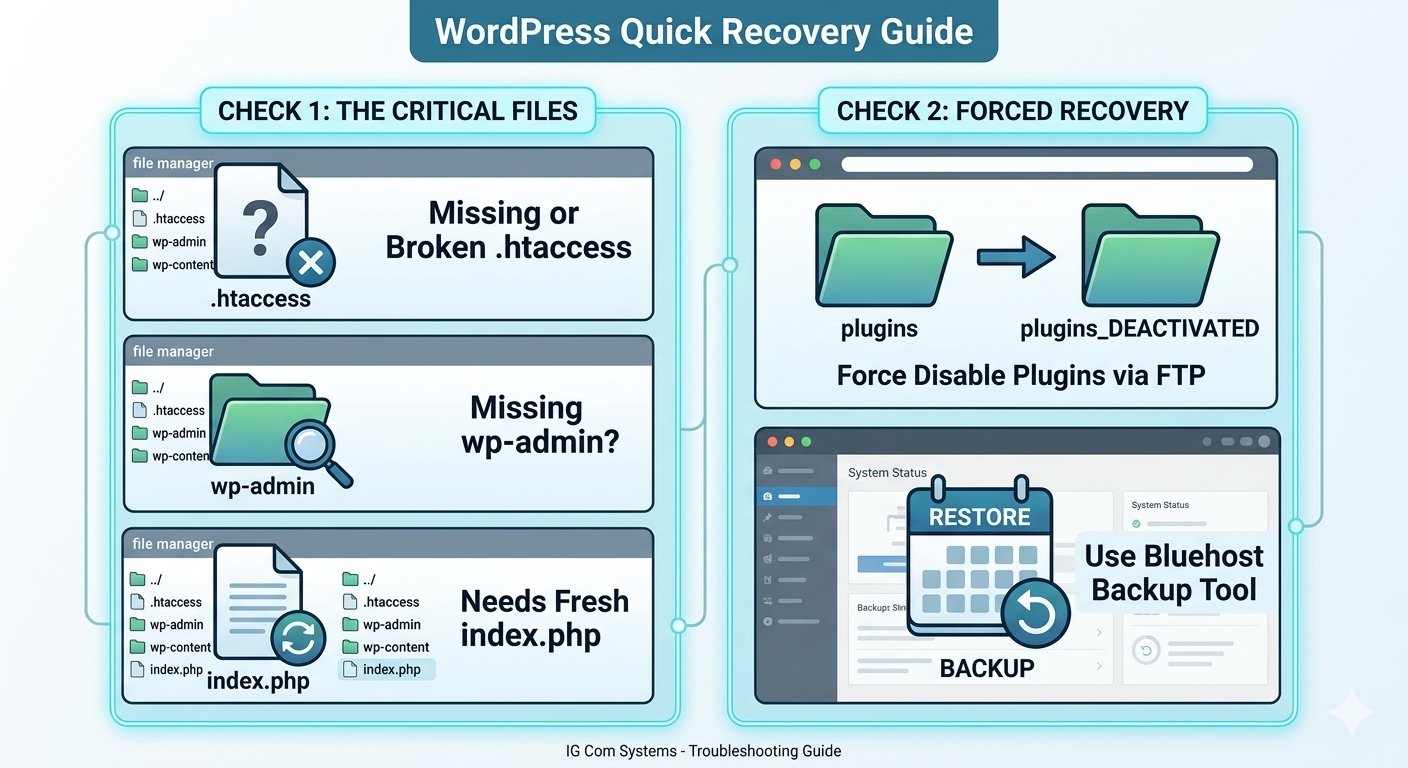
1. Check the “Front Door” (.htaccess)
The .htaccess file is the most common casualty of a server cleanup. It tells your server how to handle your website’s links. If it’s missing or corrupted, your site literally won’t know where to send your visitors.
- The Fix: Look for a backup file in your File Manager named
.htaccess.nfd-backupor.htaccess.bak. Rename it to exactly.htaccess. - Manual Fix: If no backup exists, create a new file named
.htaccessand paste the standard WordPress Rewrite code into it.
2. The “Deactivate All” Plugin Trick
Sometimes, deleting temporary session files (sess_...) causes a security or caching plugin to “glitch,” locking you out of your dashboard.
- The Fix: Go to your
wp-contentfolder in your File Manager and rename thepluginsfolder toplugins_old. This “force-disables” every plugin. If your site comes back, you know a plugin was the culprit! You can then rename it back topluginsand reactivate them one by one.
3. Verify Your Core Files
During a cleanup, it’s easy to accidentally click on a core file. WordPress needs three main things in your public_html folder to “breathe”:
index.php(The entry point)wp-config.php(The connection to your database—Never delete this!)wp-blog-header.php
If any of these are missing, your site will show a 404 error. You can usually find them in your server’s Trash folder and restore them.
| File Pattern / Extension | What it is | Safe to Delete? |
.zip / .tar.gz | Usually old backups or plugin installs. | YES, if you have the contents already or a newer backup. |
.log | Error reports or activity logs. | YES, and they can sometimes be massive. |
error_log | A list of PHP errors on your site. | YES, but read the last few lines first to see if your site has a hidden problem. |
.tmp | Temporary files left over from processes. | YES, always. |
wp-config.php | Your site’s connection to the database. | NO! Deleting this will take your site offline instantly. |
.htaccess | Server rules and security settings. | NO! This controls your site’s links and security. |
The “Cleaning” Rule of Thumb
As you go through your folders, a good way to tell the difference between “Trash” and “Tools” is the file extension:
.txt,.log,.tmp,.bak,.zip,.gz: These are usually results or backups. They are almost always safe to delete if they are old..conf,.php,.ini,.htaccess: These are instructions. Deleting these is like taking the engine out of a car—it won’t run without them.
Summary for your Current Cleanup:
awstats...txt(December 2025) → DELETED (Safe ✅)sess_...→ DELETED (Safe ✅)bpadqmmy...sql.gz→ DELETED (Safe ✅)awstats...conf→ KEEP IT (Essential ⚠️)
| File | Status | Action |
webalizer.hist | Data Summary | Delete ✅ |
awstats...txt | Old Report | Delete ✅ |
sess_... | Temp Session | Delete ✅ |
awstats...conf | System Rule | KEEP ⚠️ |
| File Name / Type | Keep or Delete? | Reason |
usage_YYYYMM.html | DELETE ✅ | Old traffic report. |
webalizer.hist | DELETE ✅ | Old traffic history. |
awstats...txt | DELETE ✅ | Old stat data. |
sess_... | DELETE ✅ | Temp login session. |
awstats...conf | KEEP ⚠️ | Required for future tracking. |
One quick tip: If you see any files starting with core. followed by a number (like core.12345), those are “crash reports” from your server and are usually quite large. You can delete those too!
4. Permissions Matter
If you moved files around, their “Permissions” might have changed. For a WordPress site to function:
- Folders should be set to 755.
- Files should be set to 644.
- If a file is set to
0000, the server is forbidden from reading it, resulting in a “Not Found” error.
5. The Emergency “Undo” Button
If all else fails, most quality hosts (like Bluehost) have a built-in backup restoration tool.
- Log into your main hosting portal (not WordPress).
- Find the Restoration/Backup section.
- Pick a snapshot from 24 hours ago. It’s the fastest way to “time travel” back to when your site was working perfectly.
Need help with your business tech or web systems? Visit us at IG Com Systems for professional IT support and web solutions.