

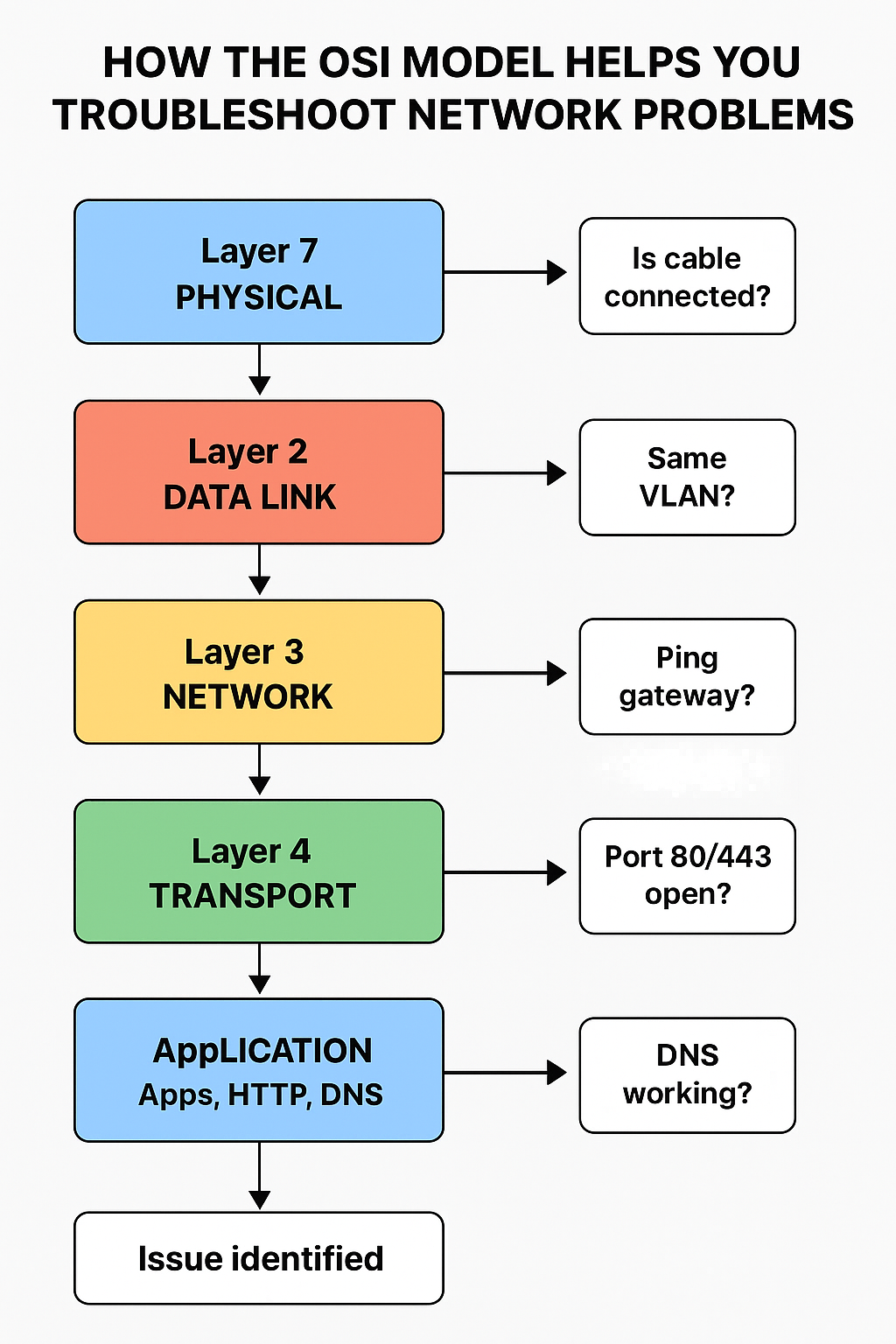
The OSI Model is a 7-layer framework that helps you isolate and identify where a network problem is happening.
Instead of guessing, you follow a layer-by-layer process, starting from the bottom (physical) to the top (applications).
Think of it like checking a car:
🔧 First check if it has gas → then battery → then engine → then electronics.
The OSI model works the same way.
🔍 The 7 Layers (Simple Explanation + What You Check at Each Layer)
🔹 Layer 1 – Physical Layer (Cables, Power, Hardware)
What this layer covers:
- Ethernet cables
- Connectors
- Wi-Fi signal
- Power to devices
- Network cards
- Switch ports
Typical problems at this layer:
✔ Loose cable
✔ Damaged cable
✔ Bad port on switch or router
✔ Device powered off
✔ No link lights
How you troubleshoot:
- Check the cable is plugged in both ends
- Try another cable
- Try another port
- Check link lights (green = good, orange/blinking = activity)
- Check the device has power
🔹 Layer 2 – Data Link Layer (MAC Address, Switches)
What this layer covers:
- Switches
- MAC addresses
- Network card communication
Typical problems:
✔ MAC filtering
✔ VLAN mismatch
✔ Switch port disabled
✔ Duplicate MAC address
How you troubleshoot:
- Confirm the device is in the correct VLAN
- Check switch configuration
- Use ARP or MAC tables
- Check for port shutdown or errors
🔹 Layer 3 – Network Layer (IP Address, Routing)
What this layer covers:
- IP address
- Router
- Subnets
- Gateway
Typical problems:
✔ Wrong IP address
✔ Wrong subnet mask
✔ Wrong gateway
✔ Routing issues
✔ Duplicate IP
How you troubleshoot:
- Check IP with:
ipconfig (Windows) ifconfig / ip addr (Linux) - Ping gateway
- Check router settings
- Trace route (tracert / traceroute)
🔹 Layer 4 – Transport Layer (TCP/UDP, Ports)
What this layer covers:
- TCP
- UDP
- Port numbers
- Firewalls
Typical problems:
✔ Firewall blocking ports
✔ Services blocked (80, 443, 22, etc.)
✔ Connection reset or timeout
How you troubleshoot:
- Use
telnet IP portorncto test ports - Check firewall rules
- Test TCP vs UDP
🔹 Layer 5 – Session Layer
Covers:
- Session control
- Login sessions
- API connections
Problems:
✔ Session timeout
✔ Authentication issues
Troubleshoot:
- Check authentication logs
- Check server time/date
- Restart session or service
🔹 Layer 6 – Presentation Layer
Covers:
- Encryption
- Data format (JPEG, JSON, HTML)
Problems:
✔ Bad certificates
✔ Corrupted data
✔ Mismatched encryption
Troubleshoot:
- Check SSL/TLS certificates
- Verify file formats
- Check for SSL handshake errors
🔹 Layer 7 – Application Layer
Covers:
- Apps like: browser, email client, server
- Protocols: HTTP, FTP, DNS, DHCP
Problems:
✔ DNS not resolving
✔ Server app down
✔ Browser config issue
✔ Incorrect URL
Troubleshoot:
- Test DNS with
nslookupordig - Check if app/service is running
- Restart service
🚦 How to Use the OSI Model in Real Troubleshooting
Here is the exact step-by-step workflow used by professional IT technicians:
🧠 Step 1 — Start at Layer 1 (Physical)
Example: “No internet”
First check:
✔ Is cable plugged in?
✔ Does Wi-Fi have signal?
✔ Is router powered on?
🧠 Step 2 — Layer 2 (Switch / MAC)
Check:
✔ Does the switch see the MAC address?
✔ Is the port in correct VLAN?
🧠 Step 3 — Layer 3 (IP Address / Router)
Check:
✔ Does device have a valid IP?
✔ Can you ping gateway?
If IP is wrong → FIXED.
🧠 Step 4 — Layer 4 (Ports)
If you can ping but still cannot access a website:
✔ Check firewalls
✔ Test TCP ports
🧠 Step 5–7 (Sessions, Encryption, Application)
If lower layers are OK, the problem is in the application:
✔ DNS server offline
✔ Website down
✔ SSL certificate expired
🛠️ Example Troubleshooting Scenario
Problem: You can’t access a website.
Use OSI Model to find the issue:
Layer 1 → Cable connected? Wi-Fi signal OK?
✔ Yes → Go to layer 2
Layer 2 → Same VLAN? Switch sees your MAC?
✔ Yes → Go to layer 3
Layer 3 → Ping Google (8.8.8.8)?
✔ Yes → Then routing is good → Go to layer 4
✘ No → IP address problem
Layer 4 → Port 80/443 open?
✔ Yes → Go to layer 7
✘ No → Firewall blocking
Layer 7 → DNS working?
✔ No → DNS problem
This is how OSI helps you locate the exact failure.