

What You’ll Need
(Unchanged – same as before)
Traditional Single Router Setup
Step 1: Set Up the Hardware
(Your original steps 1-5 here, with images)
Step 2: Configure the Router
(Unchanged)
Alternative: Set Up a Mesh Wi-Fi Network (Recommended for Larger Homes)
If your home is bigger than ~2,000 sq ft, has multiple floors, thick walls, or Wi-Fi dead spots, a mesh network is often better than a single router.
What’s the Difference?
- Traditional Router: One central router broadcasts Wi-Fi. Signal weakens with distance.
- Mesh Network: Multiple “nodes” (small routers) work together, creating a seamless blanket of strong Wi-Fi everywhere. Devices automatically connect to the strongest node—no switching networks.
Here’s a clear comparison:
Traditional WLAN (a) versus Wireless Mesh Network (b) | Download …
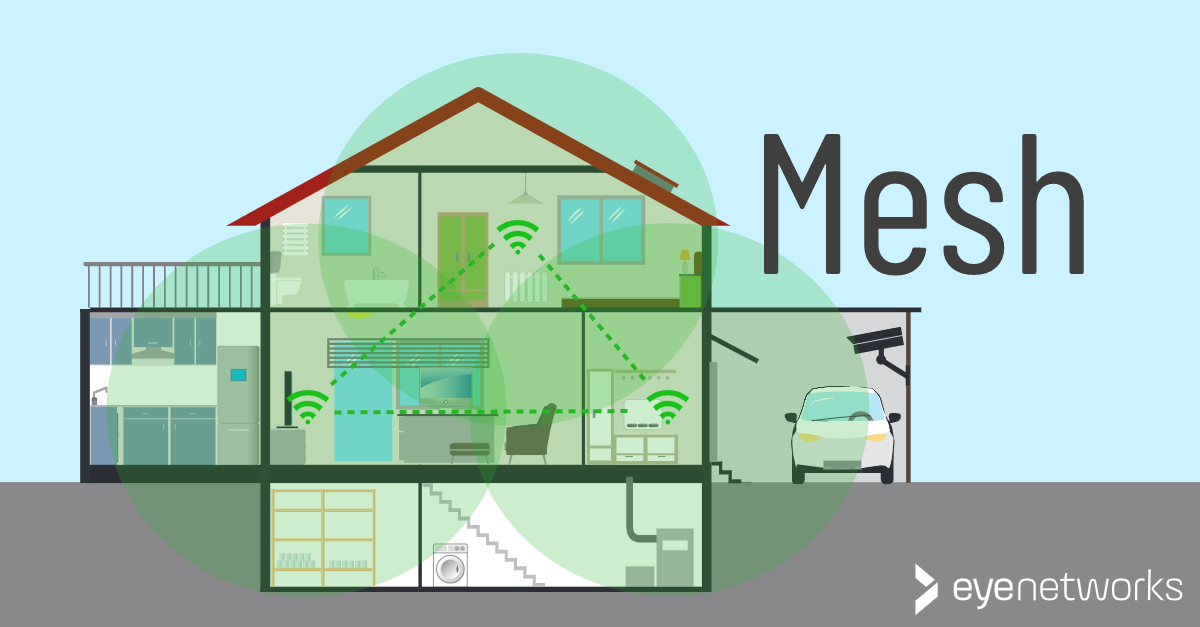
And a diagram showing how mesh nodes connect:

Mesh Wi-Fi: What Is It And When Would You Need It? > Eye Networks
Popular easy-to-use mesh systems (2025 recommendations):
- Google Nest Wi-Fi
- Amazon Eero
- TP-Link Deco
- Netgear Orbi
- Asus ZenWiFi
These are “plug-and-play”—no advanced config needed.
Examples of mesh systems:


Step-by-Step Mesh Network Setup
- Buy a Mesh Kit: Start with a 2- or 3-pack (one main node + satellites). Add more later if needed.
- Connect the Main Node:
- Plug the main (primary) node into your ISP modem using an Ethernet cable (modem → main node’s WAN port).
- Power it on.
- Wait for lights to indicate it’s ready.
![How to Set up Mesh Wi-Fi Networks Easily? [2025] - VSOL](https://i0.wp.com/www.vsolcn.com/wp-content/uploads/2025/01/mesh-wifi-system.webp?ssl=1)
How to Set up Mesh Wi-Fi Networks Easily? [2025] – VSOL
- Download the App: Each brand has its own (e.g., Google Home app, Eero app, TP-Link Deco app). Scan the QR code on the node or search in your phone’s app store.
- Follow the App Setup:
- Create an account if needed.
- The app will guide you: Scan the main node, create your Wi-Fi name (SSID) and strong password.
- It connects to the internet automatically.
- Add Satellite Nodes:
- Plug in each additional node in rooms where you want better coverage (e.g., upstairs, backyard).
- Space them evenly—about 30-50 feet apart.
- The app detects them automatically and adds them to the mesh (takes 1-2 minutes each).
- Lights will show when they’re connected.
What is Mesh WiFi? | Whole Home Mesh WiFi | TP-Link
- Test and Optimize:
- Walk around your home with your phone—check signal strength.
- The app often has a coverage map or speed test.
- Some systems allow wired backhaul (connect nodes with Ethernet for even better performance).
That’s it! Your whole home now has one seamless Wi-Fi network.
Step 3: Connect Devices to the Network (Same for Both Traditional and Mesh)
(Your original Step 3 with OS-specific instructions and images – unchanged, as mesh systems use the same Wi-Fi connection process)
Step 4: Security and Best Practices
(Unchanged – applies to both setups. Mesh systems often have built-in advanced security like auto-updates and guest networks)
Troubleshooting Tips
- For mesh: If a node won’t connect, move it closer to the main node and retry.
- App not working? Restart your phone or try on another device.